
How to use auto-formatting – Evernote Help & Learning
How to use auto-formatting
Evernote supports several typing shortcuts that automatically apply special formatting as you type. This allows for the quick creation of common items like lists, tables, and divider lines. You can even create , and !
Item | How to activate | Example |
Unordered list (bullets) | Begin a line with * or - | 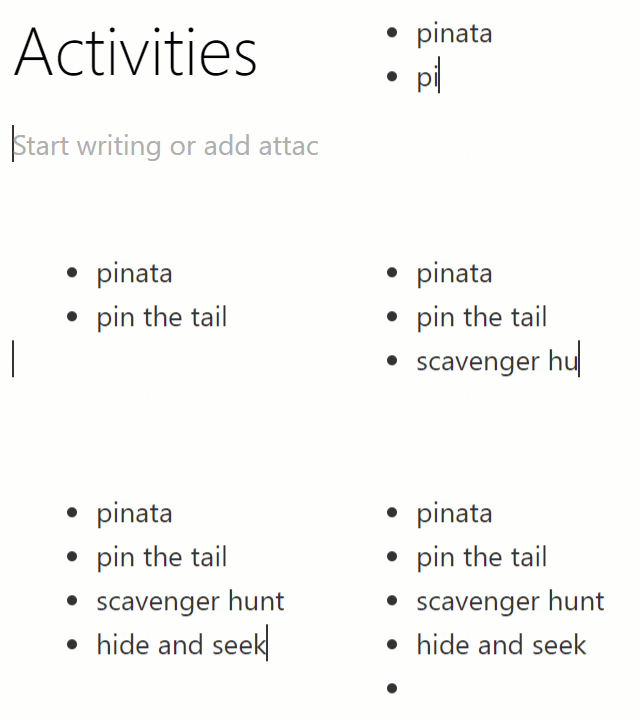 |
Ordered list (numbers) | Begin a line with 1. or 1) Note: You can start an ordered list at any number. | 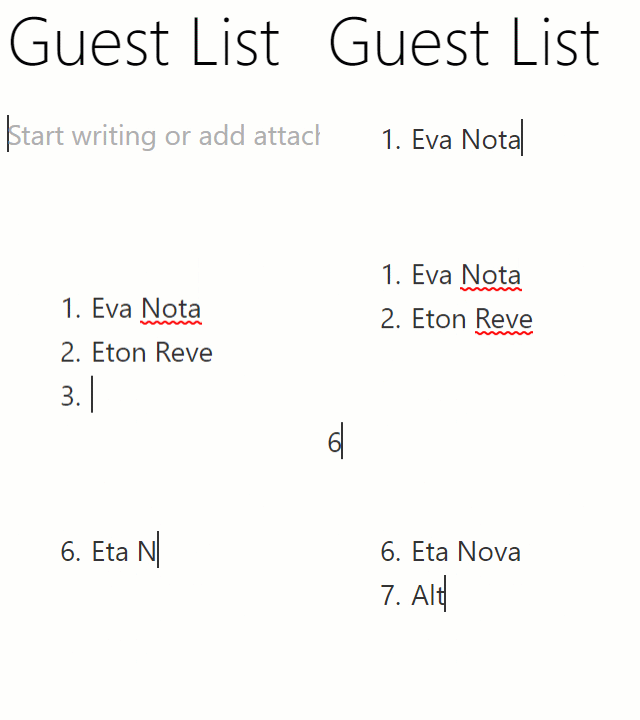 |
To-do item (checkbox) | [] or [x] Note: Include the 'x' to create a checked box. | 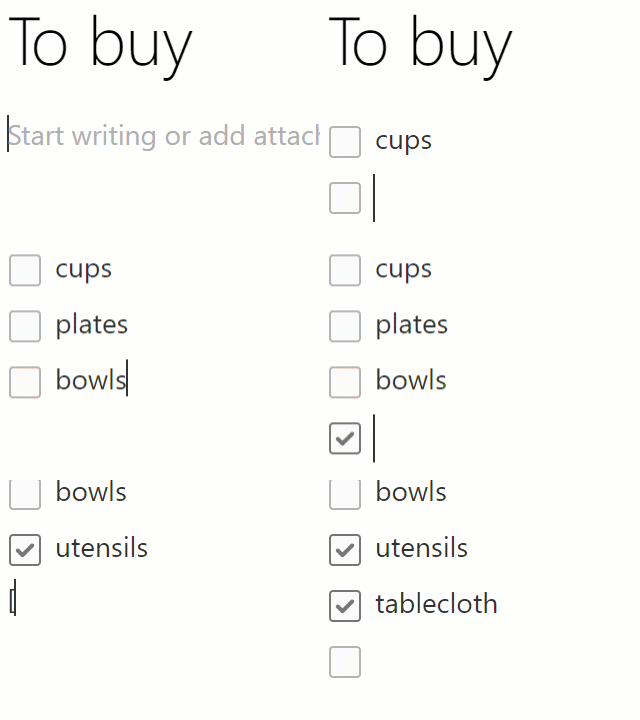 |
Horizontal rule (divider) | ---, ===, or *** at the beginning of a line, followed by the Enter key. | 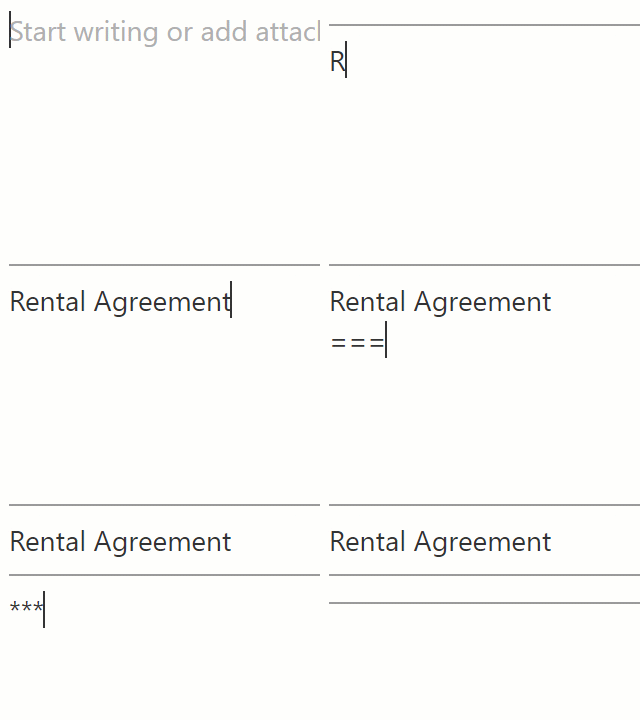 |
Code block | ``` at the beginning of a line, followed by the Enter key begins and ends the code block. Note: Code blocks can’t be created via auto-formatting in Evernote for Windows or Android. | 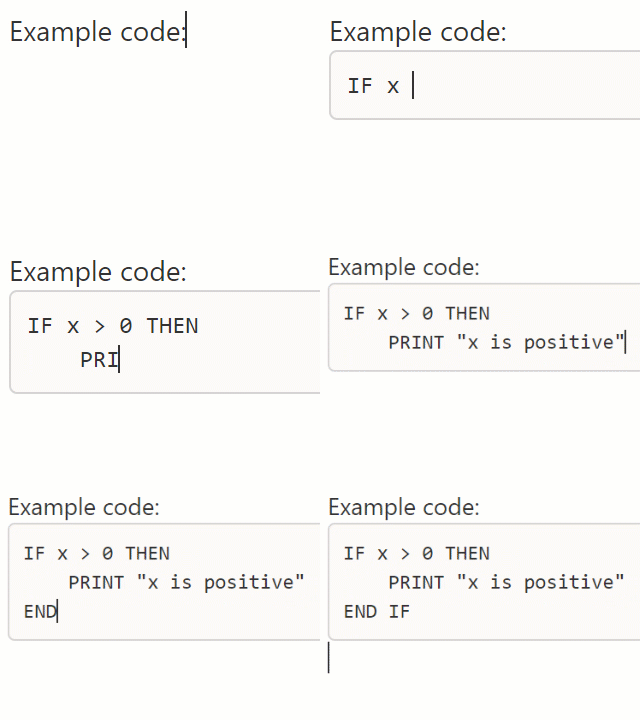 |
Table | [][][]x3 at the beginning of a line Note: Type one pair of brackets for each column desired, followed by x and the number of rows desired. Tables can't be created via auto-formatting in Evernote for Android. | 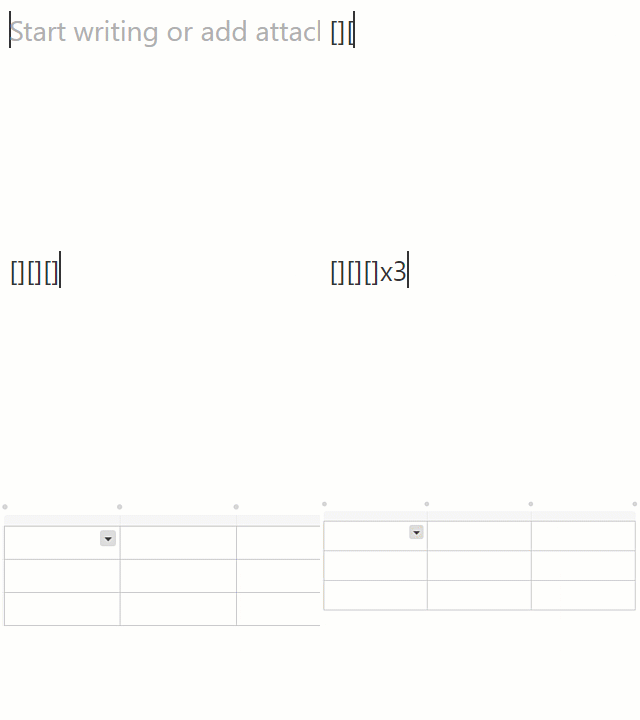 |
Link - URL | Any web address. (i.e., www.evernote.com) | 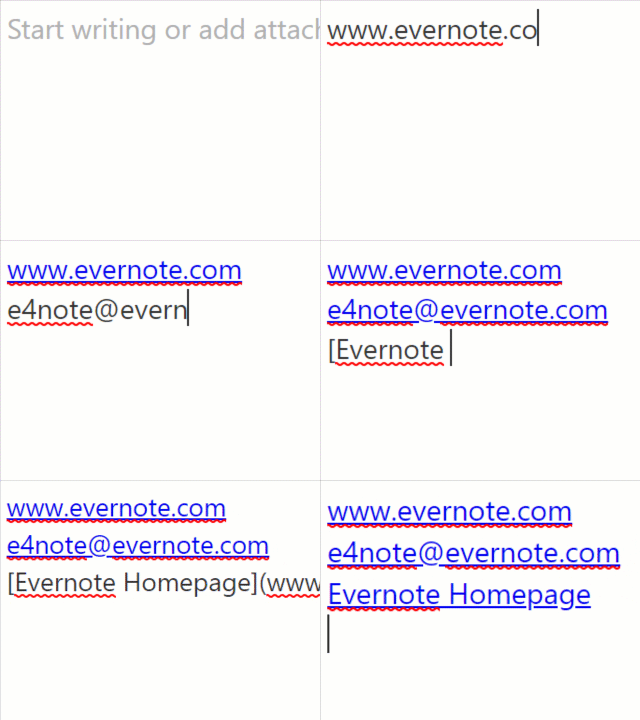 |
Link - Email | Any email address. (i.e., e4note@evernote.com) | |
Link - URL with text | use this format: [Evernote Homepage](www.evernote.com) | |
Emojis | :) Note: Evernote supports most common emojis - try your favorites! Emojis can't be created via autoformatting in Evernote for Android. | 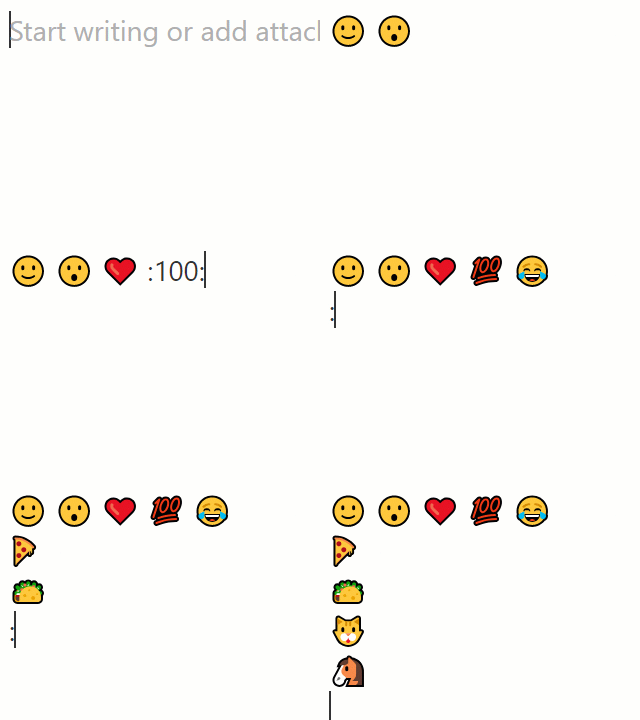 |
Removing and disabling auto-formatting
If an auto-formatting element that you don't want pops up, or to turn off some or all types of auto-formatting, follow the steps for your app below.
Mac
Windows
iPhone, iPad, and iPod touch
Android
Web
comments powered by Disqus